
Sending POS Logs to IT
UTC Retail POS tablet, pulling log files for Tech Ops
What this covers
Sending two log files from a POS tablet to IT over the internet: the dated daily log, and the triPOS SDK log. Tech Ops will usually ask for both.
You will need
- Internet on the tablet
- The date Tech Ops asked for. Log files are named by day.
1Open the Files app
- On the Home screen, do one of the following to find the blue Files folder:
- If there is an arrow at the bottom left, swipe up.
- Look for a group of apps on the desktop.
- Tap Files (the blue Files folder, not the colorful one).
2Copy the dated daily log
- Navigate to:
D1 > Android > data > com.utcretail.posappsip > files > logs
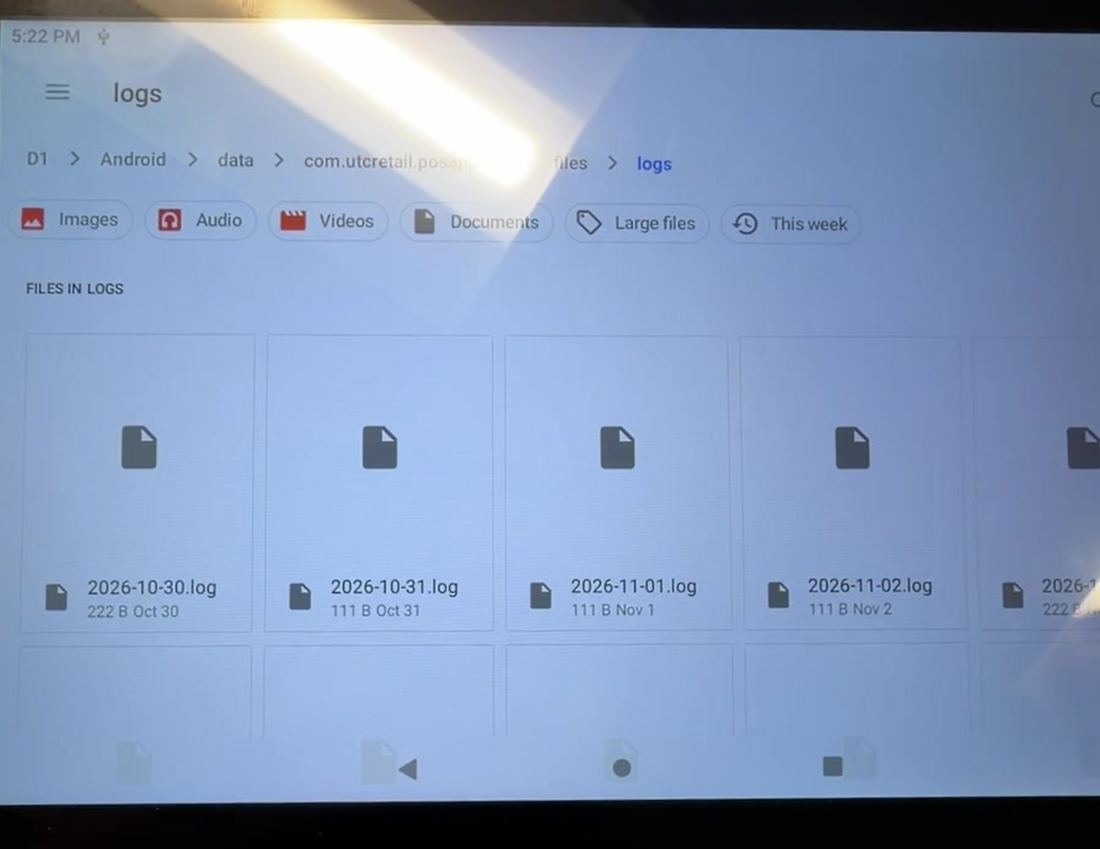
The logs folder. One file per day, named YYYY-MM-DD.log - Press and hold the log file for the date you need. The top of the screen changes to 1 selected.
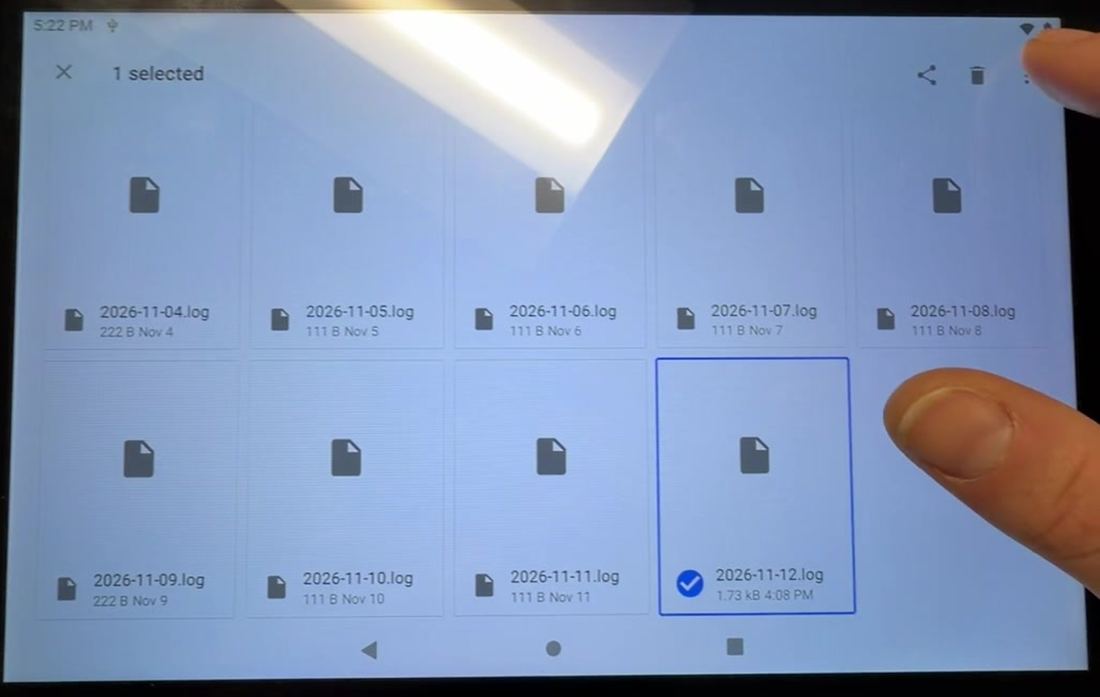
Press and hold to select. Do not just tap; a tap opens the file instead. - Tap the three dots at the top right, then tap Copy to…
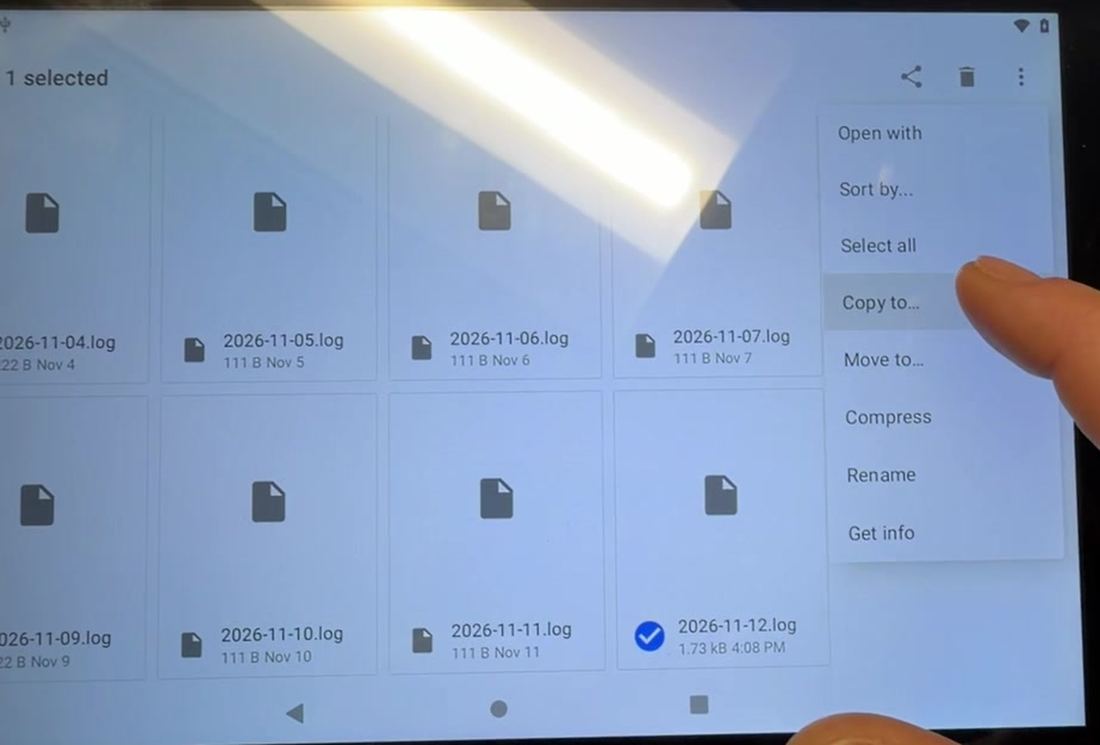
Use Copy to, not Move to. The log must stay on the tablet. - Tap the menu icon at the top left, choose Downloads, then tap COPY.
- A Copying 1 item message appears at the bottom. Wait for it to clear.
3Copy the triPOS SDK log
- Navigate to:
D1 > Android > data > com.utcretail.posappsip > files > fis > tripossdk > log
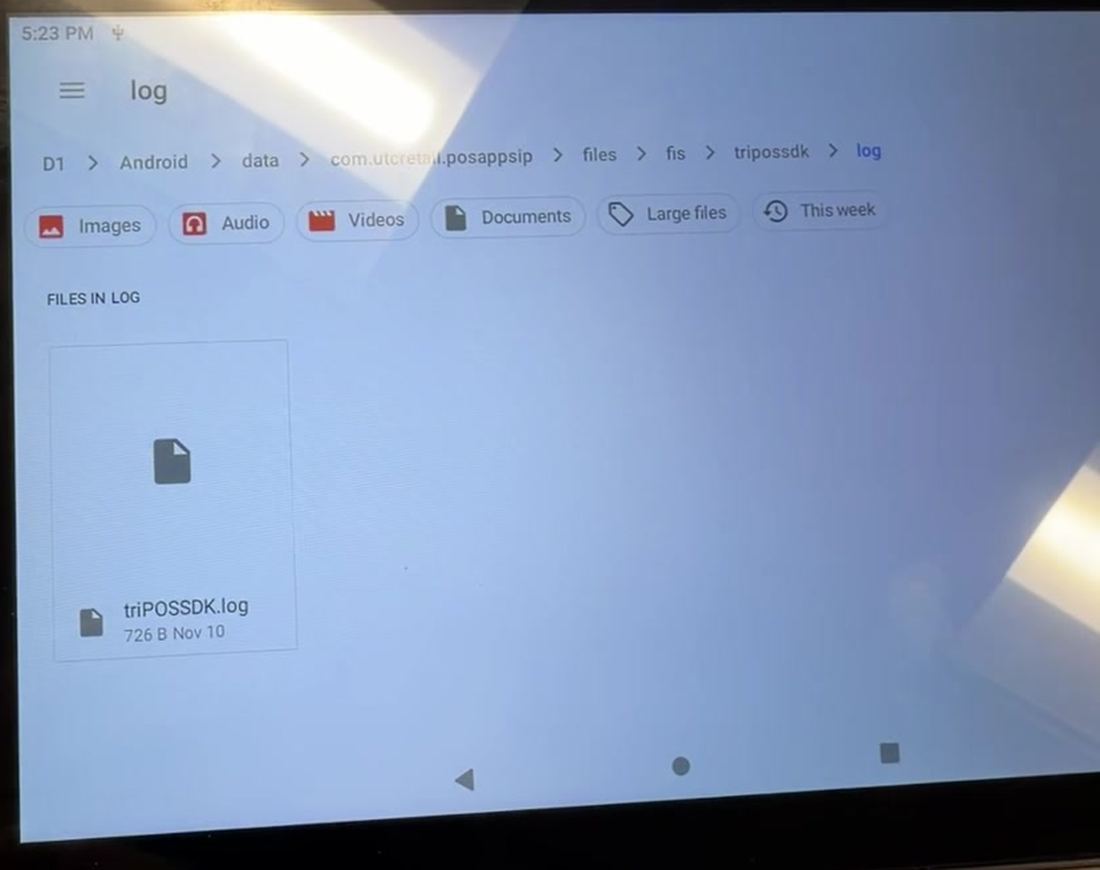
This folder holds a single file: triPOSSDK.log - Press and hold triPOSSDK.log.
- Three dots → Copy to… → Downloads → COPY.
- Both files are now in Downloads on the tablet.
4Send the files to IT
- Open Chrome and go to pos.chptesting.com, or tap the button below.
- Tap Select files, open Downloads, and select both log files.
- Enter your first and last name, then tap Upload.
- Wait for the page to show the upload is complete.
Watch out for
Copy to, not Move to. Moving the file removes it from the tablet, which breaks the running log.
Press and hold to select. A single tap opens the file instead of selecting it.
Check the date. Files are named by day. Make sure you grab the one Tech Ops asked for.
Replace if asked. If the tablet says a file with the same name is already in Downloads, choose to replace it.
Questions? Call the IT Service Desk at 833-935-1188.